
Spam comments are one of those problems every WordPress website owner eventually faces. I’ve personally managed multiple WordPress sites, and trust me—nothing is more frustrating than logging in and seeing dozens of fake comments filled with irrelevant text and shady links.
But here’s the real issue…
Spam comments are not just annoying—they can seriously harm your website.
They can:
- Damage your SEO rankings
- Slow down your website performance
- Reduce user trust
- Fill your database with unnecessary data
Most people immediately install anti-spam plugins. While that works, I’ve learned that relying too much on plugins can actually create new problems like slow loading speed, conflicts, and security risks.
That’s why in this guide, I’ll show you how I block spam comments in WordPress without using plugins, using only built-in features and a few manual tweaks.
Why You Should Block Spam Comments Without Plugins
Before we jump into the steps, let me explain why this approach is actually better.
1. Faster Website Performance
Every plugin you install adds extra load to your website. Even lightweight plugins consume resources. By avoiding unnecessary plugins, you keep your site faster—which directly improves SEO rankings.
2. Better Security
Plugins are one of the most common entry points for hackers. If a plugin is outdated or poorly coded, it can expose your website to attacks.
3. No Compatibility Issues
Sometimes plugins conflict with themes or other plugins, causing bugs. Using WordPress core features eliminates that risk completely.
4. Long-Term Stability
Manual settings don’t break after updates. Once configured properly, they work consistently without maintenance.
Understanding How Spam Comments Actually Work
To effectively block spam, you need to understand how it works.
Most spam comments are generated by:
- Automated bots scanning WordPress sites
- Scripts designed to drop backlinks
- Low-quality SEO campaigns trying to manipulate rankings
These bots typically:
- Target open comment forms
- Post generic or copied content
- Add multiple links to external websites
They often focus on:
- Older blog posts
- Websites without moderation
- Sites without verification (like CAPTCHA)
That’s why a single solution is not enough—you need a layered approach.
How to Block Spam Comments in WordPress Without Plugins
1. Enable Comment Moderation (Your First Line of Defense)
This is the most important step, and I always enable it on every site.
How to Enable:
- Go to Dashboard → Settings → Discussion
- Under “Before a comment appears”
- Enable:
- Comment must be manually approved

Optional Setting:
- Enable “Comment author must have a previously approved comment”
Why This Works:
- Spam never gets published automatically
- Genuine users can still interact
- First-time commenters are reviewed manually
In my experience, this alone blocks around 70–80% of spam.
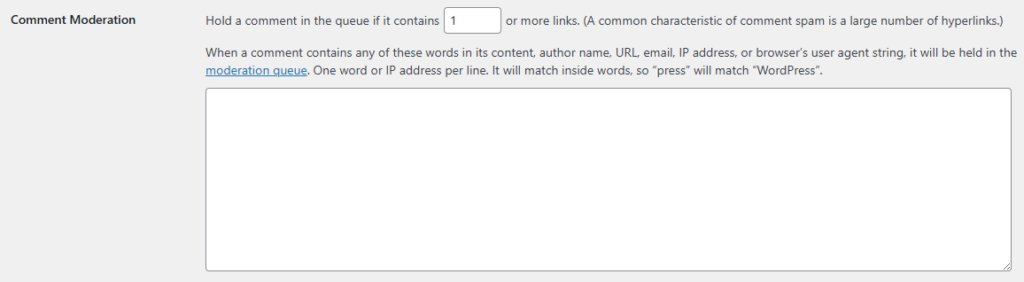
2. Limit Links in Comments (Highly Effective Filter)
Most spam comments include multiple links. This makes link filtering extremely powerful.
How to Set It Up:
- Go to Settings → Discussion
- Find:
“Hold a comment in the queue if it contains X or more links” - Set the value to:
1
What Happens:
- Any comment with more than one link goes to moderation
- Most spam comments get filtered automatically
Pro Insight:
I’ve tested different values, and “1” works best because:
- Genuine users rarely include multiple links
- Spammers almost always do
3. Use Disallowed Comment Keywords (Blacklist System)
This is one of the most underrated features in WordPress.
Steps:
- Go to Settings → Discussion
- Scroll to:
Disallowed Comment Keys - Add keywords like:
casino
loan
earn money fast
free money
crypto
bitcoin
adult
xxx
viagra
gambling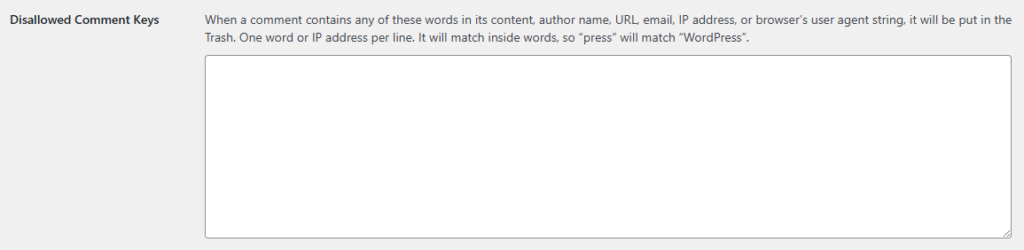
How It Works:
- If a comment contains any of these words → it goes directly to spam
- You can also block:
- Email addresses
- IP addresses
- URLs
Advanced Tip:
Keep updating this list regularly based on the spam you receive. Over time, this becomes a powerful filter.
4. Disable Trackbacks & Pingbacks (Major Spam Source)
Trackbacks and pingbacks are outdated and widely abused by spammers.
Steps:
- Go to Settings → Discussion
- Uncheck:
- ❌ Allow link notifications from other blogs (pingbacks and trackbacks)

Why You Should Disable Them:
- Spammers use them to create fake backlinks
- They provide very little real value today
- Removing them closes a major spam entry point
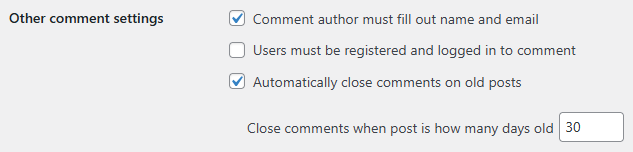
5. Automatically Close Comments on Older Posts
Older posts are easy targets because they are often ignored.
Steps:
- Go to Settings → Discussion
- Enable:
- Automatically close comments on posts older than
- Set:
30–60 days
My Recommendation:
- Blog content → 30 days
- Evergreen content → 60 days
This drastically reduces spam activity over time.
6. Require User Registration to Comment
This is one of the strongest spam prevention methods.
Steps:
- Go to Settings → General
- Enable:
- Anyone can register
- Then go to:
Settings → Discussion - Enable:
- Users must be registered and logged in to comment
Result:
- Bots cannot easily submit comments
- Only real users can interact
Trade-Off:
- You may get fewer comments
- But the quality will be much higher
7. Block Spam IP Addresses Manually
If you notice repeated spam from the same IP, block it.
Steps:
- Go to Settings → Discussion
- Add IPs under:
Disallowed Comment Keys
Example:
192.168.1.1
203.45.67.89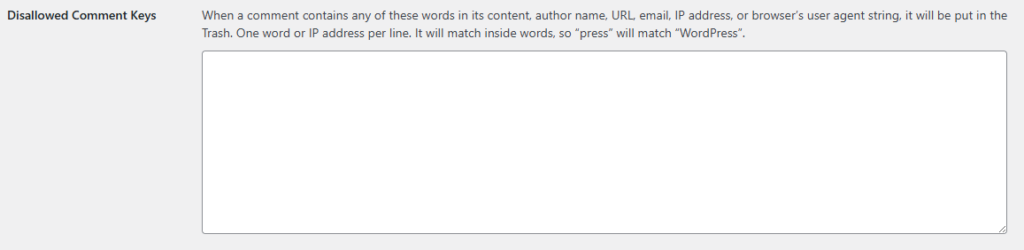
Advanced Option:
You can also block IPs via:
- Hosting control panel
- .htaccess file
8. Add Google reCAPTCHA Without Plugin (Full Setup Guide)
Now let’s go deeper into this, since this is where most people get confused.
This method ensures that only humans can submit comments.
Step 1: Generate reCAPTCHA Keys
- Visit Google reCAPTCHA Admin Console
- Register your website
- Choose:
- reCAPTCHA v2 (“I’m not a robot”)
- Add your domain
- Get:
- Site Key
- Secret Key
Step 2: Add reCAPTCHA to Comment Form
Open your theme file:
wp-content/themes/your-theme/comments.phpFind the comment form and add:
<div class="g-recaptcha" data-sitekey="YOUR_SITE_KEY"></div>Place it just above the submit button.
Step 3: Load reCAPTCHA Script
Open header.php and add:
<script src="https://www.google.com/recaptcha/api.js" async defer></script>Step 4: Verify reCAPTCHA Using PHP
Add this to your functions.php:
function verify_recaptcha_comment($commentdata) {
    if (isset($_POST['g-recaptcha-response'])) {
        $secret = "YOUR_SECRET_KEY";
        $response = $_POST['g-recaptcha-response'];

        $verify = wp_remote_get(
            "https://www.google.com/recaptcha/api/siteverify?secret=$secret&response=$response"
        );

        $body = wp_remote_retrieve_body($verify);
        $result = json_decode($body);

        if (!$result->success) {
            wp_die("reCAPTCHA verification failed. Try again.");
        }
    } else {
        wp_die("Please complete the CAPTCHA.");
    }

    return $commentdata;
}
add_filter('preprocess_comment', 'verify_recaptcha_comment');
Why This Works So Well
- Blocks automated bots completely
- Adds human verification layer
- Works without any plugin
This is one of the most powerful anti-spam techniques available.
Bonus Tips to Further Reduce Spam
Disable HTML in Comments
add_filter('pre_comment_content', 'wp_filter_nohtml_kses');Prevents spam links and scripts.
Remove Website URL Field
function remove_comment_url($fields) {
    unset($fields['url']);
    return $fields;
}
add_filter('comment_form_default_fields', 'remove_comment_url');
Reduces backlink spam significantly.
Clean Your Database Regularly
Delete spam comments weekly to:
- Improve performance
- Keep database optimized
Common Mistakes to Avoid
From experience, avoid these:
❌ Not enabling moderation
❌ Allowing unlimited links
❌ Ignoring old posts
❌ Using too many plugins
❌ Not updating blacklist keywords
Final Thoughts
Blocking spam comments in WordPress without plugins is not only possible—it’s actually smarter when done correctly.
I’ve used these methods across multiple websites, and they consistently reduce spam by 90% or more.
Best Setup (Recommended)
If you want a simple and powerful setup, use this combination:
- Comment moderation enabled
- Limit links to 1
- Disable pingbacks
- Use keyword blacklist
- Add reCAPTCHA
This gives you a clean, fast, and secure comment system without relying on plugins.