

Your WordPress site is one bad update, one server crash, or one hack away from disappearing forever. Without a backup, years of hard work — your content, your settings, your customer data — can vanish in seconds. That’s not a scare tactic. That’s reality.
The good news? You don’t need to spend a dime to protect your site. There are powerful, free WordPress backup plugins that get the job done reliably. In this guide, we’ve handpicked the 3 best free WordPress backup plugins and broken down exactly what each one offers — so you can choose the right one for your site.
Why You Absolutely Need a WordPress Backup Plugin
Before we dive into the plugins, let’s get one thing straight: your web host’s backup is not enough.
Most hosting providers back up on their own schedule, store backups for a limited time, and may charge you to restore. A dedicated backup plugin puts you in control — you decide when, where, and how often your site gets backed up.
Whether you’re a blogger, a business owner, or a developer managing client sites, a backup plugin is non-negotiable. Let’s look at the best free options available right now.
Best Free WordPress Backup Plugins in 2026 (Tried & Tested)
1. UpdraftPlus — Best Overall Free WordPress Backup Plugin

⭐ Rating: 4.8/5 | Active Installs: 3+ Million
If there’s one name that dominates the WordPress backup space, it’s UpdraftPlus. It is the world’s most popular WordPress backup and migration plugin, actively installed on more than 3 million websites around the globe. The numbers speak for themselves — and so do over 8,400 five-star reviews.
What Makes UpdraftPlus Stand Out
UpdraftPlus strikes the perfect balance between simplicity and power. You can have your first backup running in minutes, even if you’ve never touched a backup plugin before. At the same time, it offers enough features to satisfy seasoned developers.
Key Free Features:
- Scheduled automatic backups — set them every 2, 4, 8, or 12 hours, daily, weekly, or monthly
- Cloud storage integration — back up directly to Google Drive, Dropbox, Amazon S3, Rackspace, FTP, or email
- One-click restore — restore your entire site with a single click from the WordPress dashboard
- Manual backups — run a backup anytime you want, on demand
- Files + database backup — backs up your entire WordPress content directory and all database tables
- Site size checker — view how much space your plugins, themes, and uploads are consuming
Cloud Storage Options (Free)
The free version connects seamlessly to Google Drive, Dropbox, Amazon S3, Rackspace, FTP, and DreamObjects. That means your backups are stored safely off your server — which is exactly where they should be.
What You Get with Premium
The Premium version unlocks incremental backups (only changes are backed up, saving server resources), additional storage destinations like Microsoft OneDrive, SFTP, Backblaze B2, Azure, and Google Cloud, plus migration tools, multisite support, and database encryption.
Who Should Use It
UpdraftPlus is the safe default for virtually any WordPress site. Whether you run a personal blog or a high-traffic business site, this plugin handles it reliably. Its massive install base and active development history make it one of the most battle-tested backup tools in the WordPress ecosystem.
“Want to see exactly how UpdraftPlus works in action? Read our step-by-step WordPress backup guide for a full walkthrough.”
2. All-in-One WP Migration — Best for Hassle-Free Site Migration
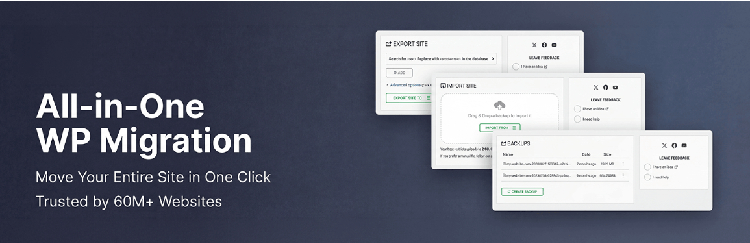
⭐ Trusted by 60+ Million Websites | Used Since 2013
If you need to move your WordPress site to a new host, change your domain, or simply want the simplest backup experience imaginable, All-in-One WP Migration deserves a serious look. It has been the go-to migration plugin for WordPress users since 2013 and is now trusted by over 60 million websites worldwide — including organizations like Boeing, NASA, Harvard, and Stanford.
What Makes It Different
Most backup plugins were built primarily for backups, with migration added as an afterthought. All-in-One WP Migration was built for migration first — and that shows in how smooth and foolproof the experience is.
Key Free Features:
- One-click full site export — packs your entire site (database, media, themes, plugins) into a single
.wpressfile - Drag-and-drop import — restoring or migrating is as simple as dragging the file into your browser
- Zero downtime migrations — move your site without any service interruption
- Advanced find & replace — automatically updates URLs and paths when you move to a new domain
- Selective backup — choose to include or exclude specific content types
- Universal compatibility — works across MySQL, MariaDB, and SQLite databases
- Memory-efficient processing — handles large sites smoothly even on resource-limited shared hosting (processes in 512KB chunks)
- PHP 5.3 to 8.4 support — compatible with virtually every hosting environment
The One Limitation to Know
The free version has an import file size limit depending on your server’s PHP configuration. For large sites, you may need the paid extension to import files beyond a certain size. However, exporting (creating the backup) is always unlimited and free.
Who Should Use It
All-in-One WP Migration is perfect for beginners who want the simplest possible experience, and for anyone who needs to migrate their site to a new host or domain. It’s also a fantastic choice for developers who regularly set up new WordPress installs and need a quick way to clone sites.
3. BackWPup — Best for Developer-Level Control

⭐ Highly Rated | By WP Media
BackWPup is the most feature-rich free backup plugin for WordPress users who want granular control over every aspect of their backup process. Developed by WP Media (the team behind WP Rocket), it brings a professional, structured approach to backups through its intuitive 3-step setup wizard.
What Makes BackWPup Stand Out
While UpdraftPlus and All-in-One WP Migration focus on simplicity, BackWPup leans into configurability. You can set up multiple backup jobs with different settings, destinations, schedules, and archive formats — all from one clean dashboard.
Key Free Features:
- 3-step backup wizard — choose What, When, and Where in minutes
- Flexible scheduling — hourly, daily, weekly, or monthly backups
- Multiple storage destinations — Dropbox, FTP, Amazon S3, and more
- Custom archive formats — choose ZIP or TAR per backup job (added in BackWPup 5.5)
- Custom archive naming — name each backup clearly so you can identify them at a glance
- WordPress XML export — back up posts, pages, and custom post types separately
- Database backup — full database dumps using mysqldump or PHP
- Multiple backup jobs — run different backup configurations for different purposes
- Email notifications — get alerts when a backup completes or fails
The Recent BackWPup 5.5 Update
The latest major release brought back highly requested features: per-backup archive format selection and custom archive naming. These additions make it much easier to organize and manage backups across multiple jobs — a big win for power users and agencies.
What You Get with Pro
BackWPup Pro adds encrypted backups, additional cloud storage options (Amazon Glacier, Google Drive, OneDrive, HiDrive), a standalone restore application that works even when WordPress is inaccessible, and seamless site migration with URL replacement.
Who Should Use It
BackWPup is ideal for developers, agencies, and advanced users who want fine-grained control over their backup configurations. If you manage multiple WordPress sites or run complex setups with WooCommerce, multisite, or custom databases, BackWPup gives you the flexibility to set up exactly what you need.
Quick Comparison: Which Plugin Is Right for You?
| Feature | UpdraftPlus | All-in-One WP Migration | BackWPup |
|---|---|---|---|
| Active Installs | 3M+ | 60M+ sites | 700K+ |
| Scheduled Backups | ✅ Yes | ❌ No (free) | ✅ Yes |
| Cloud Storage (Free) | Google Drive, Dropbox, S3, FTP | Local only (free) | Dropbox, S3, FTP |
| One-Click Restore | ✅ Yes | ✅ Yes | ✅ Yes |
| Migration Support | Limited (free) | ✅ Excellent | Limited (free) |
| Multiple Backup Jobs | ❌ No | ❌ No | ✅ Yes |
| Best For | Most WordPress users | Beginners & migrations | Developers & power users |
3 Golden Rules of WordPress Backups
No matter which plugin you choose, follow these best practices:
1. Store backups off your server. If your server crashes or gets hacked, local backups go down with it. Always send backups to Google Drive, Dropbox, or another remote location.
2. Test your backups regularly. A backup you’ve never restored is a backup you don’t trust. Run a test restore on a staging site every few months to make sure your backups actually work.
3. Back up before every major change. Before updating WordPress core, themes, or plugins — take a manual backup. It takes 60 seconds and can save you hours of headache.
Final Verdict
- Choose UpdraftPlus if you want the best all-around free backup plugin with cloud storage, scheduling, and a proven track record across millions of sites.
- Choose All-in-One WP Migration if you’re moving your site to a new host or domain and want the simplest, most beginner-friendly experience.
- Choose BackWPup if you’re a developer or power user who wants full control over multiple backup jobs, formats, and configurations.
All three plugins are free, actively maintained, and trusted by WordPress users worldwide. There’s no excuse to leave your site unprotected — pick one and set it up today.
Have questions about which plugin is right for your site? Drop a comment below — we’d love to help!