

If you want to automatically send WordPress form entries to Google Sheets without using paid plugins, this step-by-step guide will help you.
In this tutorial, you’ll learn free and working methods to connect popular WordPress form plugins like Contact Form 7, Forminator, and Elementor to Google Sheets.
But there’s a smarter, cleaner way…
Automatically send every WordPress form entry directly into Google Sheets — for free.
That means:
- Every form submission is stored safely
- You can access your data anytime
- You can share the sheet with your team
- You can create filters, charts, dashboards
- You can track leads, orders, and inquiries in one place
- And you don’t have to pay for premium plugins
And the best part?
You can do this 100% FREE without buying expensive plugins.
In this guide, you’ll learn the best 3 free methods that work for ANY beginner.
No coding, no webhooks, no paid tools — everything is 100% free.
Let’s get started!
Also Read Our: Automate WordPress Blog Posting with n8n | AI Agents for WordPress | n8n Tutorial
Why Send WordPress Form Entries to Google Sheets?
Managing form submissions inside WordPress can be inconvenient, especially when you receive many entries. Sending WordPress form data to Google Sheets allows you to view, organize, and share responses easily.
Google Sheets also makes it easier to filter leads, track inquiries, and create backups of your form submissions.
Which Form Plugins Allow Free Google Sheets Integration?
Most form plugins claim they’re “free,” but lock important features like Webhooks or Google Sheets behind a paid plan.
After testing dozens of plugins, these are the only TRUE FREE methods that reliably send your WordPress form data to Google Sheets:
| Method | Plugin | Free? | Needs Extra Plugin? | Difficulty |
|---|---|---|---|---|
| Method 1 | Contact Form 7 | 100% Free | Yes → CF7 Google Sheet Connector | Very Easy |
| Method 2 | Forminator | 100% Free | No | Easiest |
| Method 3 | Elementor Forms | 100% Free | Yes → Google Sheets Addon | Moderate |
So we will focus only on true, working, free solutions.
Method 1: Contact Form 7 + CF7 Google Sheet Connector (100% Free)
Contact Form 7 is one of the most popular form plugins in the world — and with a free connector plugin, you can send entries to Google Sheets easily.

Plugins You Need (Free)
Contact Form 7
Download: https://wordpress.org/plugins/contact-form-7/
CF7 Google Sheet Connector
Download: https://wordpress.org/plugins/cf7-google-sheets-connector/
What You Need Before Starting
- A WordPress website
- A Google account
- 10 minutes of time
Step-by-Step Setup (For Complete Beginners)
Step 1: Install the Required Plugins
- Go to WordPress Dashboard → Plugins → Add New
- Search for: Contact Form 7
- Install → Activate
- Search for: CF7 Google Sheet Connector
- Install → Activate
You now have the required tools.
Step 2: Create a Google Sheet
- Open: https://sheets.google.com
- Click Blank Spreadsheet
- Name your sheet (example: “Website Leads”)
- Add columns like:
Name | Email | Phone | Message
- Now copy your Sheet ID.
A Google Sheet URL looks like this:
https://docs.google.com/spreadsheets/d/1AbCDEFghiJKL1234567/edit#gid=0
Your Sheet ID is the middle part:
- 1AbCDEFghiJKL1234567
Save this somewhere — you’ll need it later.
Step 3: Connect WordPress to Your Google Account
- Go to WordPress Dashboard
- Click Google Sheet (left menu)
- Click Get Google Access Code
- A Google login page will open
- Allow permissions
- Google will show a long Access Code
- Copy the code and paste it back into WordPress
- Click Save
Your website is now connected to your Google account.
Step 4: Link Your Contact Form to Google Sheet
- Go to Contact → Google Sheet
- Choose your form (usually “Contact Form 1”)
- Enter:
- Sheet Name
- Sheet ID
- Scroll down → You’ll see “Field Mapping”
- Connect:
- CF7 “your-name” → Sheet “Name”
- CF7 “your-email” → Sheet “Email”
- Etc.
- Click Save
Final Result
Every time a visitor fills your Contact Form 7 form → A new row will automatically appear in your Google Sheet.
This method is 100% free, stable, and used on millions of websites.
Method 2: Forminator (Free — Built-in Google Sheets Integration)
If you want an easy drag-and-drop builder with modern UI, choose Forminator.
It connects to Google Sheets without any additional plugin.

Plugin Link
Forminator: https://wordpress.org/plugins/forminator/
Step-by-Step Setup
Step 1: Install Forminator
Dashboard → Plugins → Add New → Search Forminator → Install → Activate.
Step 2: Create a Form
- Go to Forminator → Forms → Create New
- Choose a blank form or template
- Add fields like:
- Name
- Phone
- Message
- Click Publish
Step 3: Connect Google Sheets
- Edit your form
- Go to Integrations tab
- Find Google Sheets
- Click Activate
- Login with your Google Account
- Select your spreadsheet
- Map fields
- Save
Final Result
Your entries instantly appear in Google Sheets — without any connector plugin.
Method 3: Elementor (Free) + Google Sheet Addon
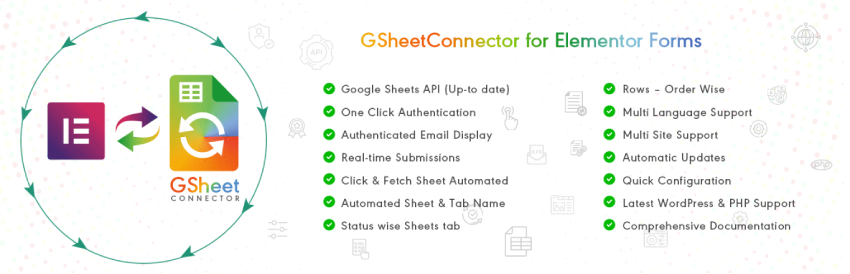
If your site uses Elementor, you can connect Elementor Forms to Google Sheets using a free addon.
Plugin Link
Elementor Google Sheets Addon (Free): https://wordpress.org/plugins/gsheetconnector-for-elementor-forms/
(This plugin supports multiple form types including Elementor.)
How to Use It
- Install the Google Sheets Connector plugin
- Go to Elementor → Forms
- Edit the form
- Under Actions After Submit → choose Google Sheets
- Connect your Google account
- Map fields
- Save
Final Result
Your Elementor form entries will appear instantly inside your connected Google Sheet.
FAQs – WordPress Forms to Google Sheets
1. Can I send WordPress form entries to Google Sheets for free?
Yes, several plugins like Contact Form 7 and Forminator allow free Google Sheets integration.
2. Does WPForms free version support Google Sheets?
No, WPForms requires a paid plan for Google Sheets integration.
3. Can I connect multiple forms to one Google Sheet?
Yes, you can use different worksheets (tabs) inside the same Google Sheets file.
Final Verdict
If you want the easiest and completely free way to send WordPress form entries to Google Sheets, Contact Form 7 + CF7 Google Sheet Connector is the best option.
It’s lightweight, beginner-friendly, and doesn’t require any paid tools.
But if you prefer a modern drag-and-drop form builder, Forminator is a fantastic free choice with Google Sheets integration built in.
And if your website already uses Elementor, using a free Google Sheets connector addon works perfectly too.