
Email is the backbone of your WordPress website.
Every critical action — contact form messages, password reset emails, WooCommerce order confirmations, membership notifications, new comments, lead alerts — depends on whether your site can send emails reliably.
But here’s the harsh reality:
- WordPress is not designed to send emails dependably
- Shared hosting isn’t optimized for transactional email delivery
- Modern mail providers reject unauthenticated emails immediately
That’s why the “WordPress Not Sending Email” issue is one of the most common and most painful problems faced by bloggers, business owners, and ecommerce store owners.
The good news?
You can fix it completely — and this guide will walk you through EVERY possible reason, EVERY practical fix, and ultimately the most reliable, permanent solution: Gmail SMTP using WP Mail SMTP.
Let’s dive deep.
Why WordPress Fails to Send Emails — Deep Technical Breakdown
To fix the issue the right way, you must understand what is actually failing behind the scenes.
Here are the REAL reasons WordPress email fails:
1. Hosting Blocks the PHP mail() Function
WordPress uses the native:
wp_mail()→ depends on- PHP
mail()→ depends on - your server’s mail configuration
But shared hosts often:
Result:
Your emails never leave the server OR get rejected before reaching the recipient.
2. Emails Fail Authentication (SPF, DKIM, DMARC Missing)
Modern email providers (Gmail, Outlook, Yahoo) use strict authentication.
If your emails are missing:
- SPF – checks who can send email from your domain
- DKIM – verifies the message wasn’t modified
- DMARC – enforces policy and prevents spoofing
Then your emails are considered:
This is one of the TOP reasons for email disappearance.
3. Emails Are Being Sent — But Going to SPAM
Sometimes WordPress is sending, but the email gets buried in spam filters because:
Gmail especially is extremely strict — ANY unverified email lands in spam instantly.
4. Plugin Conflicts Break wp_mail()
Some plugins override or modify the email sending process.
Common problem creators:
- Email customizer plugins
- Form plugins
- Membership plugins
- SMTP plugins with misconfiguration
- Security plugins that filter outgoing email
A single plugin can break email sending for your entire site.
5. Incorrect Contact Form Email Settings
This is an overlooked issue — especially for:
- Contact Form 7
- Elementor Forms
- WPForms
- Fluent Forms
- Gravity Forms
Common mistakes:
These mistakes look like spam and get rejected immediately.
6. SMTP Ports Are Blocked by Hosting
Email servers use:
- Port 587 (TLS)
- Port 465 (SSL)
Cheap hosting companies often block these ports to prevent abuse.
If SMTP can’t connect → email instantly fails.
How to Fix “WordPress Not Sending Email” — Deep Troubleshooting Guide
We will start with all non-SMTP solutions first.
If nothing works → you move to SMTP (which is the guaranteed fix).
Method 1: Fix Contact Form Plugin Email Settings (First Step)
This is where most people make mistakes.
NEVER use:
- user@gmail.com
- info@yahoo.com
- abc@hotmail.com
as your From Email.
These are marked as spoofed emails and rejected.
Best Practice (Strongly Recommended)
Use:
From Email:
noreply@yourdomain.comor
info@yourdomain.com (Google Workspace)
From Name:
Your Website / Brand Name
Also ensure:
After correcting these, send a test email.
If it still doesn’t work → go to Method 2.
Method 2: Test Whether Hosting Supports PHP mail()
Before going deep — check whether your hosting even allows email sending.
Install the plugin: Check & Log Email – Easy Email Testing & Mail logging
Go to:
Tools → Check Email → Send Test Email
Possible Results:
Test email reaches your inbox
→ WordPress CAN send emails → issue is with your form settings
Go back to Method 1.
Email goes to spam
→ Authentication problem → fix SPF/DKIM (Method 3)
Email never arrives
→ Your hosting doesn’t support PHP mail → go directly to SMTP (Method 7)
Method 3: Add SPF, DKIM & DMARC Authentication (Mandatory for Delivery)
This step is essential if emails are going to spam.
Add SPF Record (Domain-Level Validation)
For Google Workspace:
v=spf1 include:_spf.google.com ~all
For cPanel-based hosting:
v=spf1 +a +mx +ip4:YOUR.SERVER.IP ~all
Add DKIM (Verifies Email Integrity)
If you’re using Google Workspace:
- Google generates a DKIM key
- Add it as a TXT record in DNS
- Enable DKIM in Google Admin Console
Add DMARC (Protect Your Domain)
Start with a relaxed policy:
v=DMARC1; p=none; rua=mailto:you@yourdomain.com;
After authentication is active → test again.
If still not fixed → go to Method 4.
Method 4: Check Plugin Conflicts
Steps:
- Deactivate all plugins except your form plugin
- Send a test email
- Reactivate plugins one-by-one
If a plugin breaks email sending → identify & replace it.
Method 5: Fix WooCommerce Email Settings (For Stores)
Go to:
WooCommerce → Settings → Emails
Check:
- Email notifications enabled
- Correct recipient email
- From Email = your domain email
- Templates not overridden incorrectly
WooCommerce email misconfigurations are extremely common.
Method 6: Check Hosting Firewall & SMTP Port Permissions
Contact hosting support and ask:
“Are outbound SMTP ports 587 and 465 open for my hosting account?”
If they say NO →
SMTP will fail →
Move hosting or use Google Workspace routing.
If YES →
Move to the final, permanent solution.
Method 7 (Final & Guaranteed Fix): Set Up Gmail SMTP Using WP Mail SMTP (OAuth)
This is the most reliable, industry-standard solution.
Why Gmail SMTP?
Let’s set it up… step-by-step, professionally.
Complete Step-by-Step Setup: Gmail SMTP with WP Mail SMTP
This is THE most detailed Gmail SMTP setup guide available.
STEP 1: Install and Activate WP Mail SMTP
- Go to Plugins → Add New
- Search for WP Mail SMTP
- Click Install and then Activate
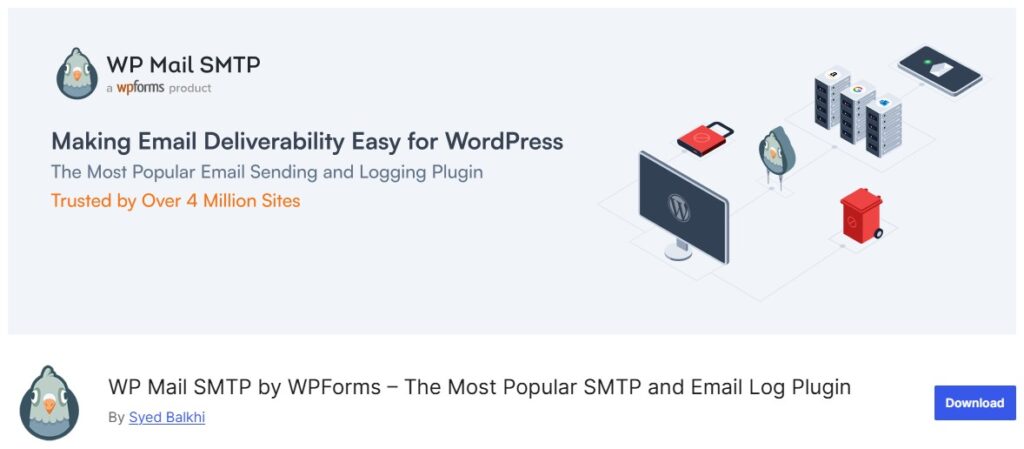
Plugin Link: https://wordpress.org/plugins/wp-mail-smtp/
Once activated, open:
WP Mail SMTP → Settings → Mailer
Select Gmail / Google Workspace.
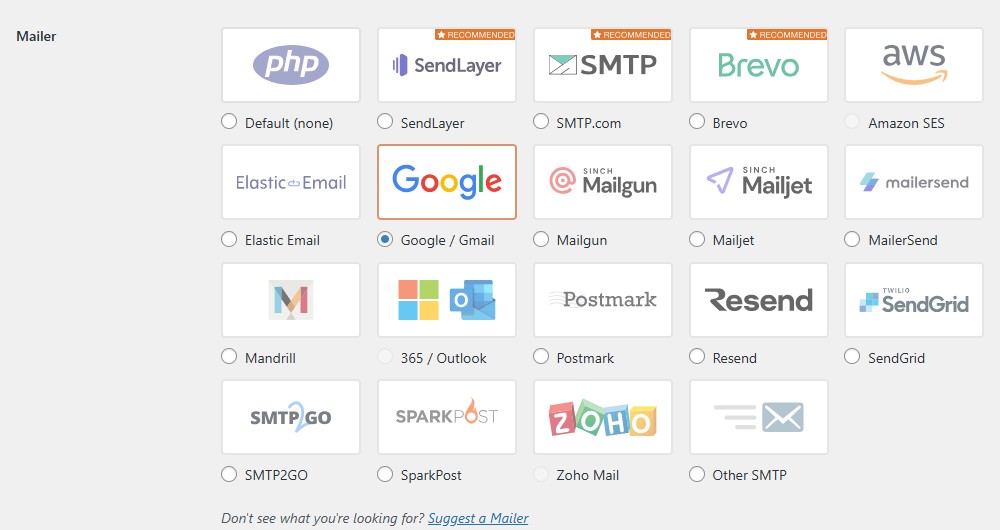
You will return to this page later.
Step 2: Create a Web App in Google Cloud Console
Open a new browser tab and go to: https://console.cloud.google.com/
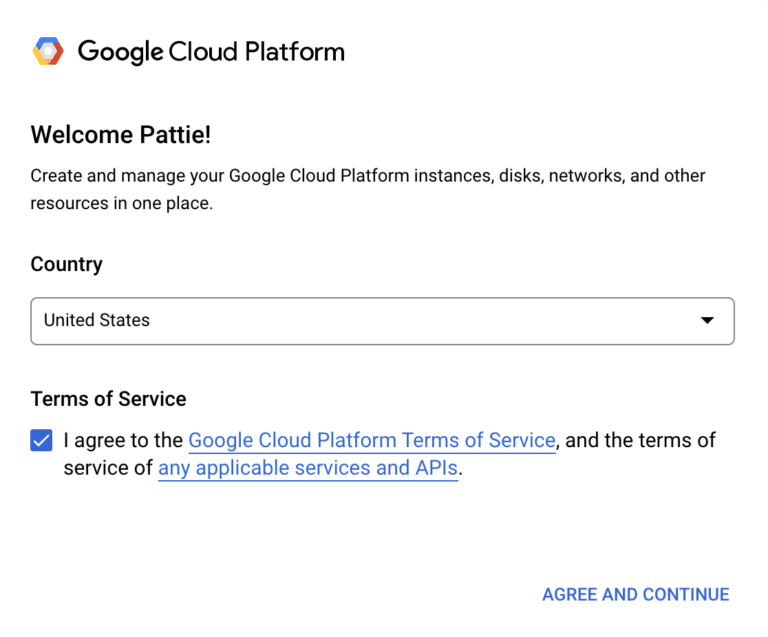
If this is your first time:
- Select your country
- Accept Google Cloud Terms
- Click Agree & Continue
Step 3: Create (or Select) a Google Cloud Project
- Click the Project dropdown at the top
- Choose an existing project or click New Project
- Enter a Project Name (anything you like, e.g., WP SMTP Email App)
- Click Create
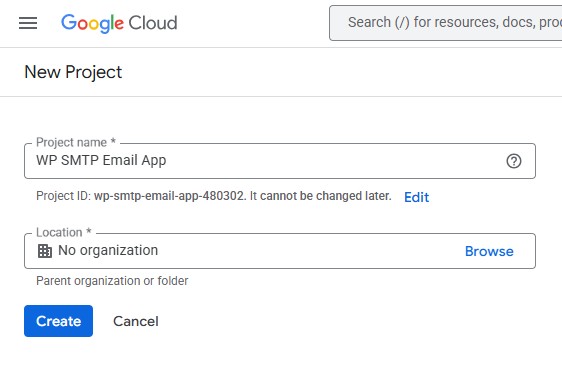
Once created, ensure the project is active.
Step 4: Enable the Gmail API
- In the left sidebar, click APIs & Services → Library
- Search for Gmail API
- Click Gmail API
- Click Enable
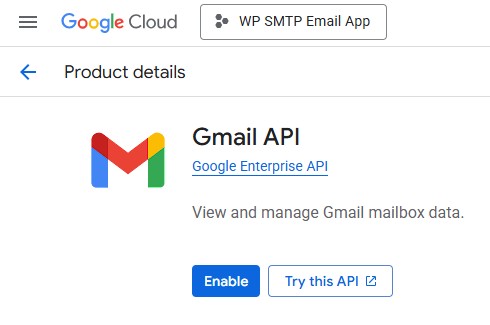
This activates Gmail email-sending capability for your project.
Step 5: Configure Your App in Google Auth Platform
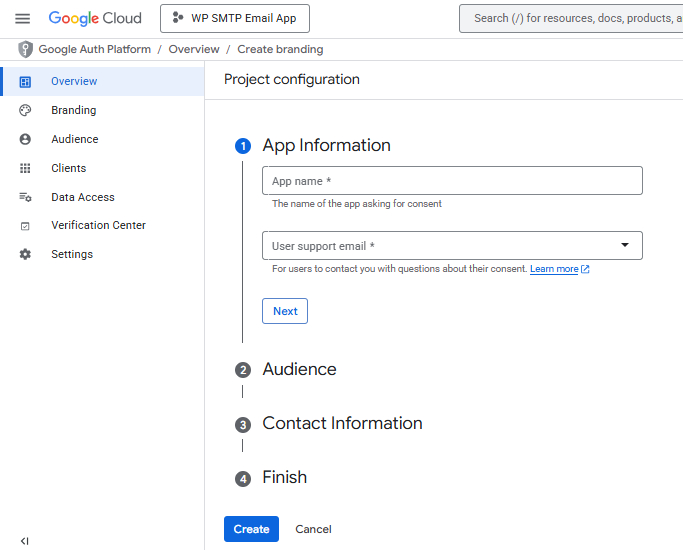
In this step, you will define your app’s basic details, audience, and contact information. These settings allow Google to recognize your app when WP Mail SMTP requests email-sending permissions.
Follow the guided configuration:
5.1 App Information
- Navigate to Google Auth Platform → Branding.
- Enter the following required details:
- App Name (e.g., WP SMTP Email App)
- User Support Email
- Click Next.
5.2 Audience
You will see two options for your app’s audience:
- Internal – Only for users within your organization (Google Workspace accounts). Does not require verification.
- External – Available to any Google account. Starts in testing mode; only users added as test users can access it. Verification may be required when moving to production.
For personal Gmail accounts or outside your organization, select: External
Click Next.
5.3 Contact Information
- Enter your Developer Contact Email (the Gmail account used for sending).
- Other fields such as website or domain are optional for personal Gmail accounts.
- Click Next.
5.4 Finish
Review the summary and click Create to complete the configuration.
Step 6: Create OAuth Client Credentials
After completing your OAuth configuration, you’ll see the OAuth Overview screen.
6.1 Create OAuth Client
Click the Create OAuth client button on this page.
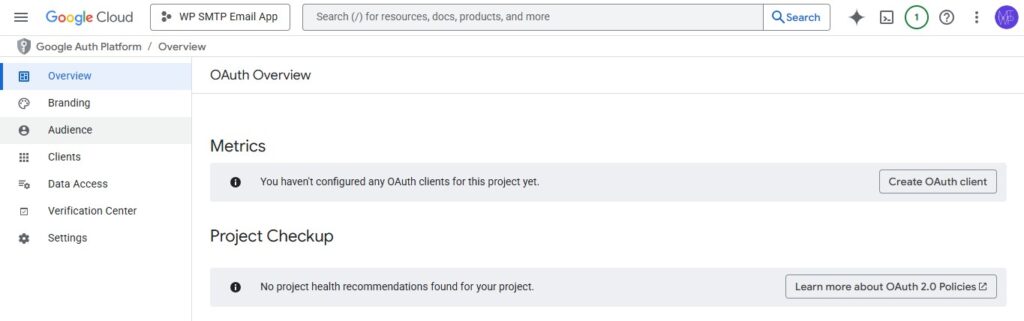
6.2: Configure OAuth Client
After clicking on the Create OAuth client you’ll see the screen like below
- In the popup, select Web Application as the application type.
- Enter a name for the client (e.g., WP SMTP Web Client).
- Scroll down to Authorized redirect URIs. Click Add URI and enter:
https://connect.wpmailsmtp.com/google/ - Click Create.
You will then see your Client ID and Client Secret — copy these for use in WP Mail SMTP.
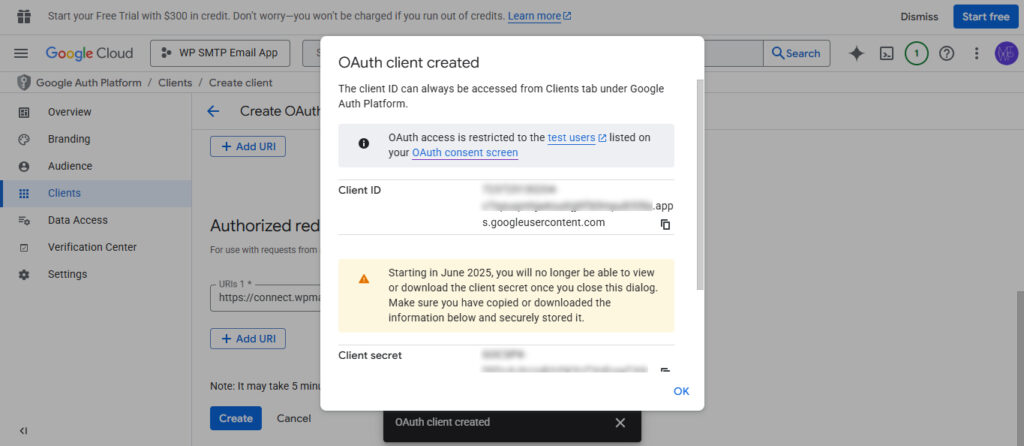
Step 7: Add Test User
- Navigate to Google Auth Platform → Audience.
- In the Test Users section, click Add User.
- Enter the Gmail address you will use for sending emails.
- Save your changes.
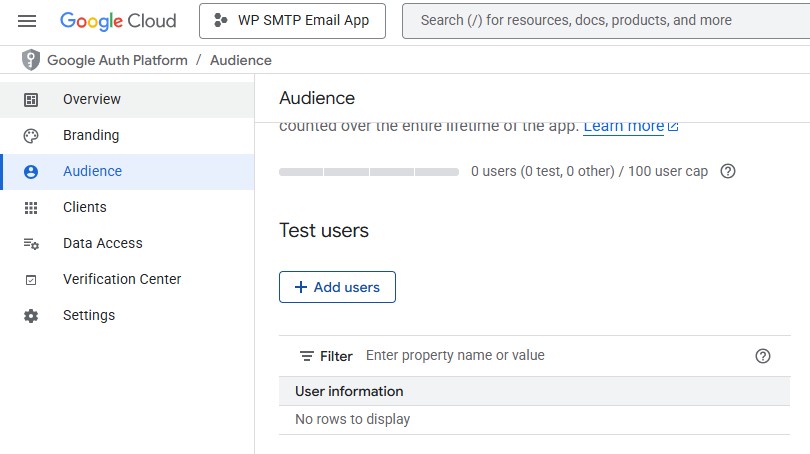
Note: Test users can access the app while it is in testing mode.
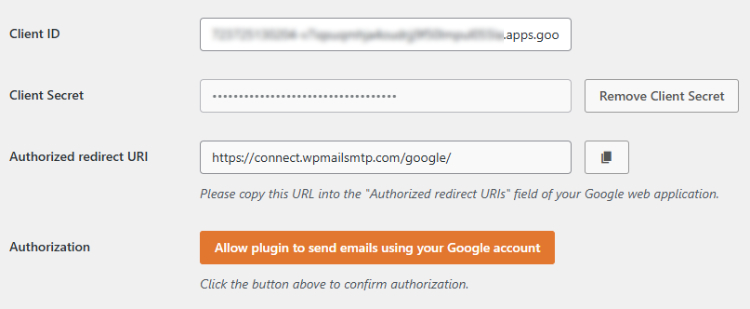
Step 8: Enter Credentials in WP Mail SMTP
- Go back to WordPress → WP Mail SMTP → Settings
- Paste:
- Client ID
- Client Secret
- Click Save Settings
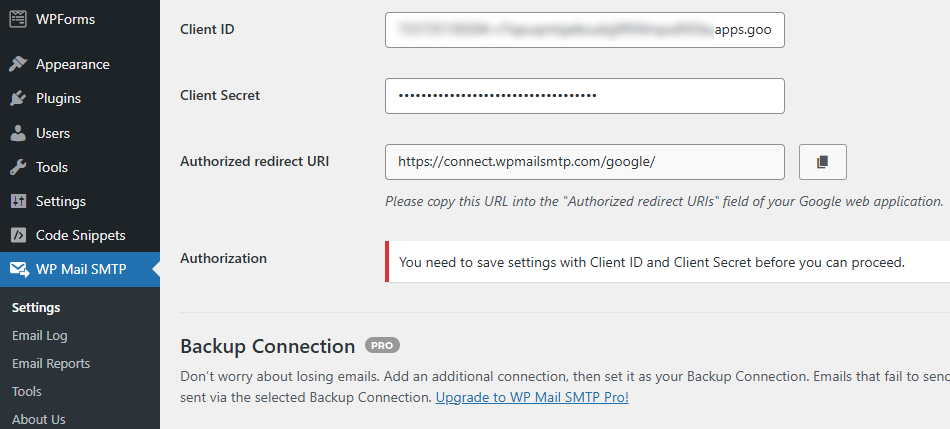
Step 9: Authorize WP Mail SMTP
Click Allow plugin to send emails using your Google account.
- Sign in with your Gmail account
- Click Allow
- If Google shows a warning:
- Click Advanced
- Click Go to app (unsafe)
- Grant access
WP Mail SMTP will confirm the connection is successful.
Step 10: Send a Test Email
- Go to WP Mail SMTP → Tools → Email Test
- Enter any email address you can access
- Click Send Email
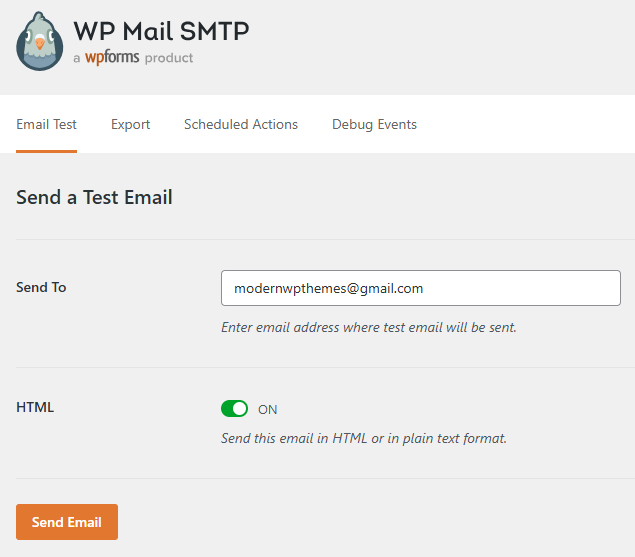
You should see:
“Test email sent successfully!”
Setup Complete
Your WordPress website is now fully connected to Gmail SMTP using the latest Google Auth Platform (Dec 2025).
This ensures:
- 100% reliable email delivery
- No emails going to spam
- Full Gmail API-based sending (not outdated SMTP password method)
- Proper authentication via OAuth
Final Verdict
These are the most effective solutions to fix the “WordPress Not Sending Email” issue. In most cases, simple checks—like correcting your form settings, verifying hosting limits, reviewing DNS records, or clearing plugin conflicts—can quickly restore your email functionality.
But if those steps don’t solve it, switching to SMTP with Gmail using the WP Mail SMTP plugin is the most reliable and long-term fix. It ensures every email your site sends—contact forms, order updates, password resets, and admin alerts—actually reaches the inbox.
With these methods, you now have a complete and proven roadmap to diagnose the issue and permanently resolve WordPress email delivery problems.