


Web development in 2026 doesn’t look anything like it did just a few years ago.
I still remember spending hours writing boilerplate code, structuring layouts from scratch, debugging small CSS issues, and manually optimizing performance. Today, my workflow is completely different — and the biggest reason for that shift is AI.
AI tools for web developers have evolved rapidly. They are no longer just code suggestion tools. They now help generate full UI layouts, create animations, write structured HTML, refactor JavaScript, improve performance, and even assist with SEO-ready content integration.
But here’s the important part:
Not every AI tool is actually useful for real-world development.
Over the past months, I’ve personally tested multiple AI tools in client projects, demo builds, animated product websites, and WordPress-based workflows. Some tools genuinely improved my speed and creativity. Others looked impressive but failed when it came to production-ready output.
In this article, I’m sharing the best AI tools for web developers that I personally use and recommend. I’ll break down:
- What each tool actually does
- How I use it in real projects
- Where it saves time
- Its limitations
- And whether it’s worth using in professional work
Whether you’re a frontend developer, WordPress developer, freelancer, or someone building high-converting landing pages, this guide will help you understand how AI can enhance — not replace — your development workflow.
Let’s dive into the tools that are genuinely changing how I build websites.
5 Best AI Tools for Web Developers in 2026
1. Google Anti-Gravity

Google Anti-Gravity is an experimental AI-powered web interaction and UI generation tool designed to create immersive, animated, and scroll-driven web experiences. Unlike traditional website builders or simple code generators, Anti-Gravity focuses on interactive layouts, motion-based storytelling, and dynamic UI structures.
When I first explored Google Anti-Gravity, I realized it’s not trying to replace developers. Instead, it works as a creative accelerator — helping generate interactive website concepts that would normally take hours to prototype manually.
For modern web developers who build animated landing pages, product showcases, or scrollytelling websites, this tool introduces a completely different workflow.
Why I Started Using Google Anti-Gravity
As someone who builds animated product websites and scroll-based hero sections, I’m always experimenting with new ways to speed up the creative process.
Instead of manually designing everything from scratch, I tested Google Anti-Gravity to see whether it could help me generate strong interactive concepts.
To properly test it, I built a complete animated burger product website using the tool — and later converted it into clean HTML, CSS, and JavaScript.
In fact, I even created a full YouTube tutorial where I show step-by-step how I built that animated burger website using Google Anti-Gravity for the concept and scroll interaction inspiration.
That project helped me understand the real strength of this tool:
- It’s not about auto-building websites.
- It’s about accelerating creative thinking.
How I Used It in My Animated Burger Website
Here’s exactly how I used Google Anti-Gravity in that project:
- I described a food-based animated product website.
- I focused on a scroll-animated hero section.
- The tool generated an interactive concept layout.
- I extracted the structure and animation logic.
- Then I rebuilt it properly using standard HTML, CSS, and JavaScript.
The final result was a high-end animated burger website with scroll-linked motion in the hero banner — which I demonstrated fully in my YouTube tutorial.
This workflow saved me time during the concept phase and helped me experiment faster.
Why This Matters for Developers
A lot of AI tools claim to generate websites.
But in real-world development, we don’t want random code — we want:
- Creative direction
- Animation ideas
- Layout inspiration
- Faster prototyping
Google Anti-Gravity is strongest in that ideation phase.
If you’re someone who:
- Builds animated landing pages
- Creates product showcase websites
- Makes tutorial content
- Builds portfolio demos
This tool can seriously improve your creative speed.
My Personal Take
After testing it in a real project (not just playing around), I can say:
Google Anti-Gravity is best used as a creative concept generator, not a final production tool.
For my animated burger project, it helped me:
✔ Structure the hero section
✔ Plan scroll-based animation
✔ Think visually first
✔ Reduce creative friction
And then I took over as a developer to refine everything properly.
2. Cursor
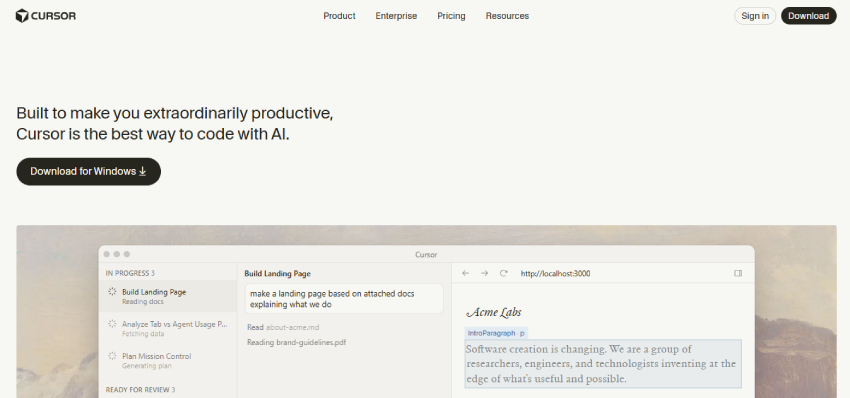
Cursor is an AI-first code editor built on top of VS Code that comes with a powerful inbuilt AI agent. It looks and feels like a normal code editor, but the difference is that the AI is deeply integrated into the development workflow.
In many ways, Cursor is similar to Google Anti-Gravity because both provide an AI-driven environment with an agent inside the editor. However, while Anti-Gravity feels more focused on creative layout generation and interactive concepts, Cursor feels more practical for real coding and structured project development.
Why I Use Cursor in My Workflow
When I build animated product websites or client projects, I divide my workflow into two phases:
- Creative ideation
- Development execution
For ideation, I experiment with tools like Google Anti-Gravity.
But once I start building the real project structure with proper folders, reusable components, and optimized JavaScript — I switch to Cursor.
The biggest advantage for me is that I don’t have to leave my editor anymore. Instead of copying code into chat tools, I can directly ask the AI inside Cursor to:
- Improve this function
- Refactor this animation logic
- Make this section responsive
- Optimize performance
- Explain why this error is happening
And it modifies the actual project files.
That makes development smoother and faster.
How Cursor Helps in Real Web Development
What makes Cursor powerful is its awareness of the entire codebase.
If I’m building:
- A multi-page website
- A structured landing page
- A WordPress theme layout
- A JavaScript-heavy animation project
Cursor understands file relationships and context.
For example, when working on animated hero sections (like in my burger website project), I can ask Cursor to clean up my scroll logic or improve animation performance without rewriting everything manually.
It feels like having a coding partner sitting next to me — but integrated directly into my editor.
Where Cursor Fits Compared to Google Anti-Gravity
Since both tools feel similar at first, here’s how I personally differentiate them:
- Google Anti-Gravity → Creative UI and interaction experimentation
- Cursor → Real-world coding, refactoring, and structured development
I don’t see them as competitors.
I see them as complementary tools in a modern developer workflow.
One helps me think creatively.
The other helps me execute cleanly.
My Personal Take
Cursor doesn’t magically replace development skills. You still need to understand structure, responsiveness, accessibility, and performance.
But when used correctly, it significantly reduces repetitive coding and debugging time.
For me, it has become a practical AI development environment — especially when building production-ready websites.
3. GitHub Copilot
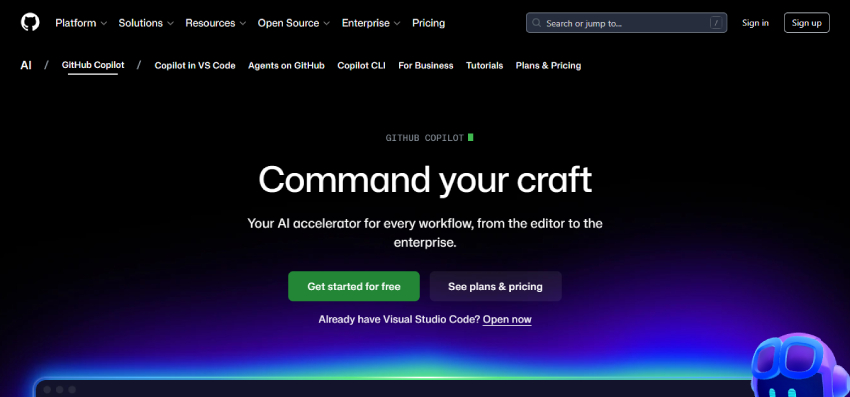
GitHub Copilot is an AI-powered coding assistant developed by GitHub in collaboration with OpenAI. It works directly inside popular code editors like VS Code and suggests code in real time as you type.
Unlike Cursor, which feels like a full AI-first editor, GitHub Copilot behaves more like an intelligent autocomplete system. It observes your code, understands context, and suggests complete lines or even full functions instantly.
For many developers, Copilot was the first serious introduction to AI-assisted coding.
Why I Started Using GitHub Copilot
Before AI-powered editors became popular, Copilot was already helping developers speed up repetitive coding tasks.
I started using it mainly for:
- Writing boilerplate HTML structure
- Generating repetitive CSS patterns
- Suggesting JavaScript functions
- Quickly scaffolding components
Instead of switching tabs or searching documentation, Copilot would often predict exactly what I was about to write.
That small speed boost adds up over time.
How GitHub Copilot Fits Into My Workflow
When I compare it with Google Anti-Gravity and Cursor, I see Copilot differently.
- Google Anti-Gravity → Creative interaction ideas
- Cursor → Deep project-aware AI editing
- GitHub Copilot → Smart real-time coding assistant
Copilot doesn’t usually refactor entire projects like Cursor.
It shines during the writing process itself.
For example:
If I start typing:
<section class="hero">
Copilot might automatically suggest a full hero structure with headings, buttons, and layout classes.
If I begin writing a JavaScript function for scroll animation, it often completes the logic based on patterns it has seen before.
This makes development feel smoother and faster.
Where GitHub Copilot Is Most Useful
From my experience, Copilot works best when:
- You already know what you’re building
- You want to move fast
- You’re writing repetitive or structured code
- You need quick function suggestions
It acts like an intelligent assistant that reduces typing effort rather than a full AI agent managing your project.
When I’m building landing pages or animation-heavy websites, Copilot helps speed up smaller coding tasks while I focus on structure and logic.
How It Compares to Cursor
Since both tools live inside the editor, many developers compare them.
The key difference I’ve noticed:
- Copilot suggests code as you type.
- Cursor allows conversational AI control over your project.
Copilot feels like smart autocomplete.
Cursor feels like an AI collaborator.
Both improve productivity — just in different ways.
My Personal Take
GitHub Copilot was one of the tools that made AI-assisted coding mainstream. It’s lightweight, fast, and integrates smoothly into daily development.
I don’t rely on it for architectural decisions, but for speeding up coding and reducing repetitive work, it’s still extremely useful.
For modern web developers in 2026, Copilot remains a solid productivity tool — especially when combined with more advanced AI editors.
4. v0 by Vercel

v0 by Vercel is an AI-powered UI generation tool created by Vercel. It allows developers to generate modern frontend components using simple prompts.
Unlike traditional AI coding tools that focus on logic or autocomplete, v0 focuses specifically on UI generation — especially React and Tailwind-based interfaces.
You describe the interface in plain English, and it generates clean, structured frontend components.
Why I Started Exploring v0
As someone who builds modern landing pages and animated product websites, I’m always looking for ways to speed up the layout phase.
Even though I often write vanilla HTML, CSS, and JavaScript, I wanted to see how fast I could generate structured UI sections using AI.
When I tested v0, I realized it’s extremely good at:
- Creating clean section layouts
- Generating responsive UI blocks
- Producing modern design patterns
- Structuring components properly
Instead of designing from scratch, I can generate a base layout in seconds and then customize it according to my needs.
How v0 Fits Into My Workflow
I personally see v0 as a UI scaffolding tool.
For example, if I need:
- A pricing section
- A testimonial layout
- A feature grid
- A dashboard-style interface
- A hero section with call-to-action
I can describe it clearly, and v0 generates a structured component.
Even if I don’t use the exact output, it gives me:
- Layout inspiration
- Spacing ideas
- Structure patterns
- Modern UI alignment
Then I either adapt it into my stack or rebuild it in vanilla HTML/CSS depending on the project.
Where It’s Strong
From my experience, v0 is strongest when:
- You’re building React-based projects
- You use Tailwind CSS
- You need modern SaaS-style layouts
- You want fast UI prototyping
It’s less about animation and more about clean UI generation.
So compared to the other tools:
- Google Anti-Gravity → Creative interactive concepts
- Cursor → AI-powered development environment
- GitHub Copilot → Smart autocomplete assistant
- v0 → Fast modern UI generation
Each tool solves a different stage of development.
My Personal Take
I don’t rely on v0 for complete website builds, especially when I’m creating animation-heavy projects.
But when I need quick layout scaffolding or modern UI patterns, it’s surprisingly efficient.
For frontend developers working with React and Tailwind, v0 can significantly reduce layout-building time.
In 2026, tools like this show how AI is not just about writing code — it’s about accelerating UI design and frontend structure as well.
5. ChatGPT
ChatGPT is an advanced AI assistant developed by OpenAI that helps with coding, debugging, architecture planning, content creation, and technical explanations.
Unlike tools such as Cursor or GitHub Copilot that live directly inside the editor, ChatGPT works more like a conversational AI partner. You describe your problem, paste your code, or explain your idea — and it responds with structured guidance.
For me, ChatGPT is not just a coding tool. It’s a development thinking assistant.
Why I Use ChatGPT as a Web Developer
I use ChatGPT daily, but not in the same way I use Cursor or Copilot.
While those tools help during the writing phase of code, ChatGPT helps me during the thinking phase.
For example, I use it to:
- Plan website architecture
- Understand complex JavaScript behavior
- Debug unusual errors
- Improve performance strategies
- Convert ideas into structured development steps
- Generate structured content for client projects
When I built animated product websites — like my burger animation project — ChatGPT helped me refine logic, improve structure, and explore different implementation approaches.
How It Fits Into My Workflow
Here’s how I typically use ChatGPT:
- I define the goal (e.g., scroll-based animation, interactive hero section).
- I ask for a structured implementation plan.
- I refine the logic step by step.
- Then I implement it inside my editor using tools like Cursor.
In this way, ChatGPT becomes a high-level problem-solving partner rather than just a code generator.
Where ChatGPT Is Most Powerful for Developers
From my experience, ChatGPT is strongest when:
- You need explanations, not just code
- You want to compare different approaches
- You’re learning a new concept
- You’re stuck debugging
- You need structured step-by-step logic
It helps reduce mental friction during development.
Instead of spending hours searching through documentation or forums, I can get structured answers instantly.
How It Complements the Other Tools
In my workflow:
- Google Anti-Gravity → Creative UI experimentation
- Cursor → AI-powered editor for structured development
- GitHub Copilot → Smart real-time code suggestions
- v0 by Vercel → UI scaffolding
- ChatGPT → Architecture thinking & debugging assistant
Each tool solves a different stage of modern web development.
My Personal Take
ChatGPT doesn’t replace developer skills. It enhances decision-making.
The more clearly I define my problem, the better results I get. And over time, I’ve learned that using AI effectively is a skill in itself.
For modern web developers in 2026, ChatGPT has become one of the most valuable tools — not because it writes code automatically, but because it improves how we think, plan, and execute projects.
Frequently Asked Questions (FAQ)
1. What are the best AI tools for web developers in 2026?
The best AI tools for web developers in 2026 depend on your workflow. In my experience, Google Anti-Gravity is great for creative interaction concepts, Cursor is powerful for AI-assisted coding inside the editor, GitHub Copilot helps with real-time code suggestions, v0 by Vercel accelerates UI generation, and ChatGPT supports architecture planning and debugging. Each tool solves a different stage of modern web development.
2. Can AI replace web developers?
No, AI cannot replace skilled web developers. These tools assist with coding, layout generation, debugging, and productivity, but they still require developer knowledge to structure projects properly, ensure performance, maintain accessibility, and deliver production-ready results. In my workflow, AI enhances speed — it doesn’t replace expertise.
3. Which AI tool is best for frontend developers?
For frontend developers, the best tool depends on the task. If you’re building animated or interactive layouts, Google Anti-Gravity can help during the creative phase. For real coding and refactoring, Cursor works extremely well. If you need fast UI scaffolding, v0 by Vercel is useful. Most frontend developers benefit from combining multiple tools rather than relying on just one.
4. Is GitHub Copilot better than Cursor?
GitHub Copilot and Cursor serve different purposes. Copilot acts like an intelligent autocomplete assistant that suggests code as you type. Cursor, on the other hand, behaves more like a project-aware AI collaborator that can refactor and modify multiple files. In my experience, Copilot improves typing speed, while Cursor improves project-level workflow.
5. How do I use AI tools effectively as a developer?
The key to using AI tools effectively is understanding when to use them. I use creative AI tools during ideation, AI editors during coding, and conversational AI like ChatGPT during planning and debugging. The better you define your problem, the better results you get from AI.
Final Thoughts
After testing and using these AI tools in real projects — including animated product websites and structured frontend builds — I’ve realized something important:
AI is not about replacing developers.
It’s about reducing friction.
From generating creative interaction ideas with Google Anti-Gravity to refactoring real code inside Cursor, from speeding up repetitive tasks with GitHub Copilot to scaffolding UI layouts using v0 by Vercel, and finally using ChatGPT for structured problem-solving — each tool plays a different role.
The real advantage comes when you combine them strategically.
In 2026, web development is no longer just about writing code line by line. It’s about building smarter workflows.
And the developers who learn how to use AI effectively — without depending on it blindly — will move faster, experiment more, and build better projects.
If you’re serious about modern web development, these tools are worth exploring.


